How To Block Apps on iPhone
Learn how to block specific apps on iPhone: a step-by-step guide using Apple Screen Time and Regain.
There are two ways to block apps on iPhone:
Option 1: Use the built-in Apple Screen Time feature
Option 2: Install an app designed to block apps
Option 1: Apple Screen Time
Choose this option if you want to avoid installing a block app. However, you lose powerful features and flexibility.
Steps to block apps on iPhone using Apple Screen Time:
1. Open Apple "Settings" app
2. Press "Screen Time"
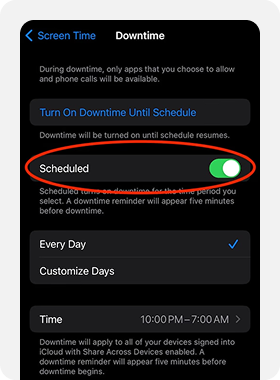
3. Press "Downtime"
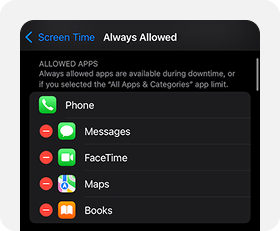
4. Turn on "Scheduled" - this will automatically block all apps at the selected schedule except the "Always Allowed" ones
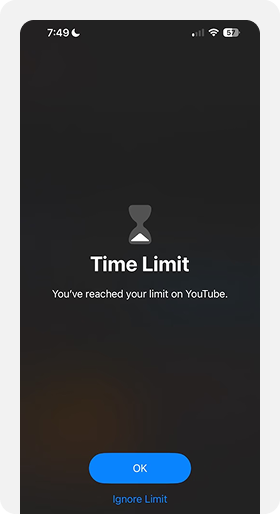
Additionally, you can also set "Time Limits" on apps by following the directions here - it's an easier way to block specific apps.
Open "Settings" App

Press "Screen Time"
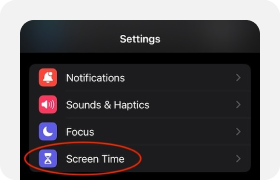
Toggle "Scheduled" (this will automatically block all apps)"
View The Blocked Apps
Use The "Always Allowed" Screen To Keep Important Apps Unblocked
Option 2: Regain
The best option to block apps if you are willing to install an app blocker.
Steps to block apps on iPhone using Regain:
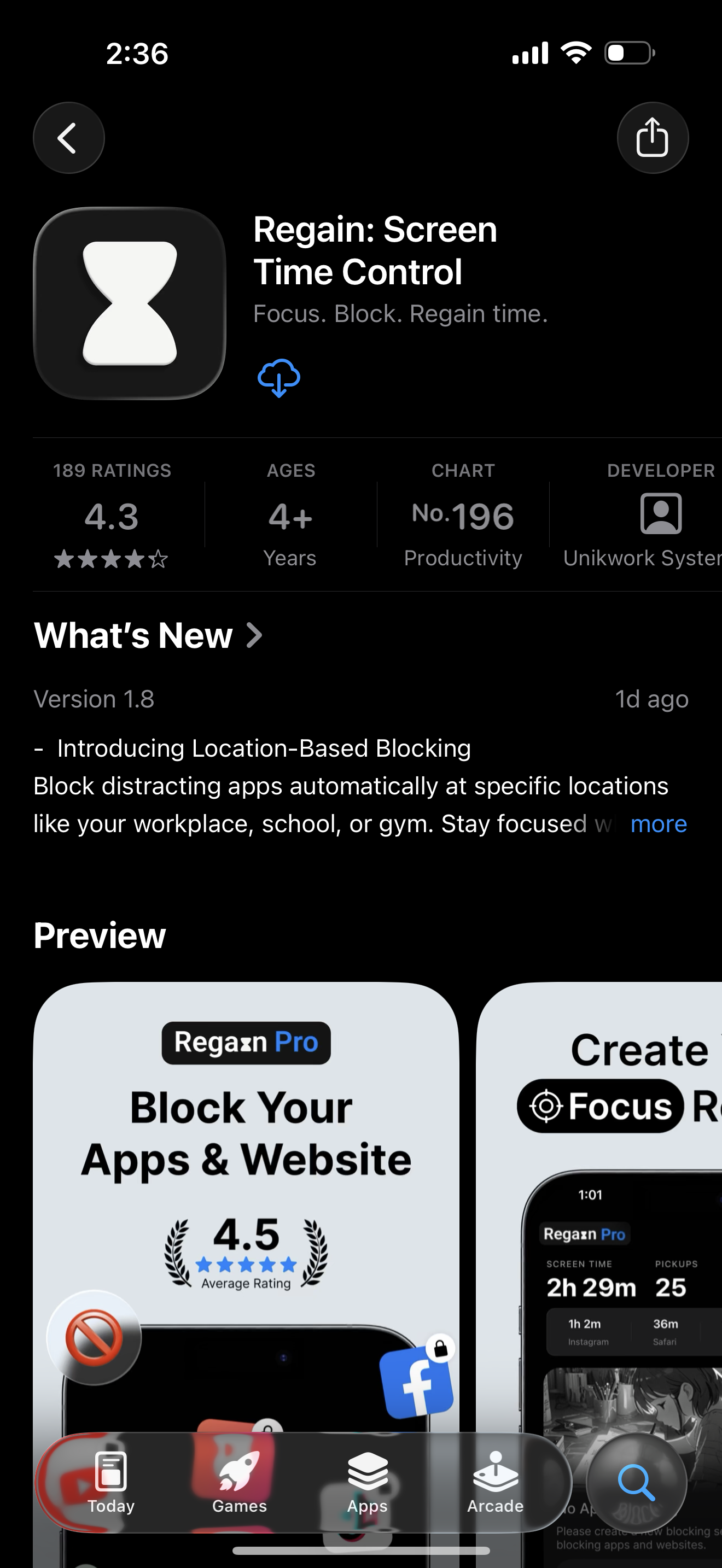
1. Install "Regain" from the Apple App Store
2. Open "Regain" app
3. Complete the onboarding steps. The onboarding will show you how to block apps!
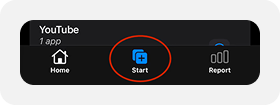
4. Select "Start" at the bottom
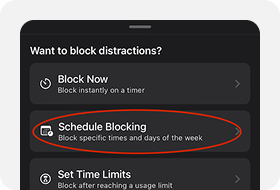
5. Select "Schedule Blocking"
6. Select apps to block
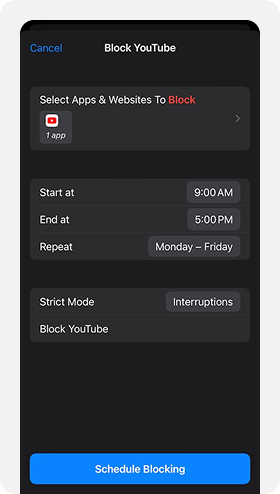
7. Pick the time of when to block
8. Press "Schedule Blocking"
Install Regain
Select "Start" At The Bottom Of The Regain Screen
Select "Schedule Blocking"
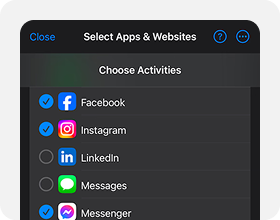
Press "Select Apps & Websites To Block"
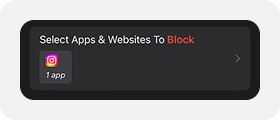
Choose The Apps To Block
Select The Time & Schedule Blocking
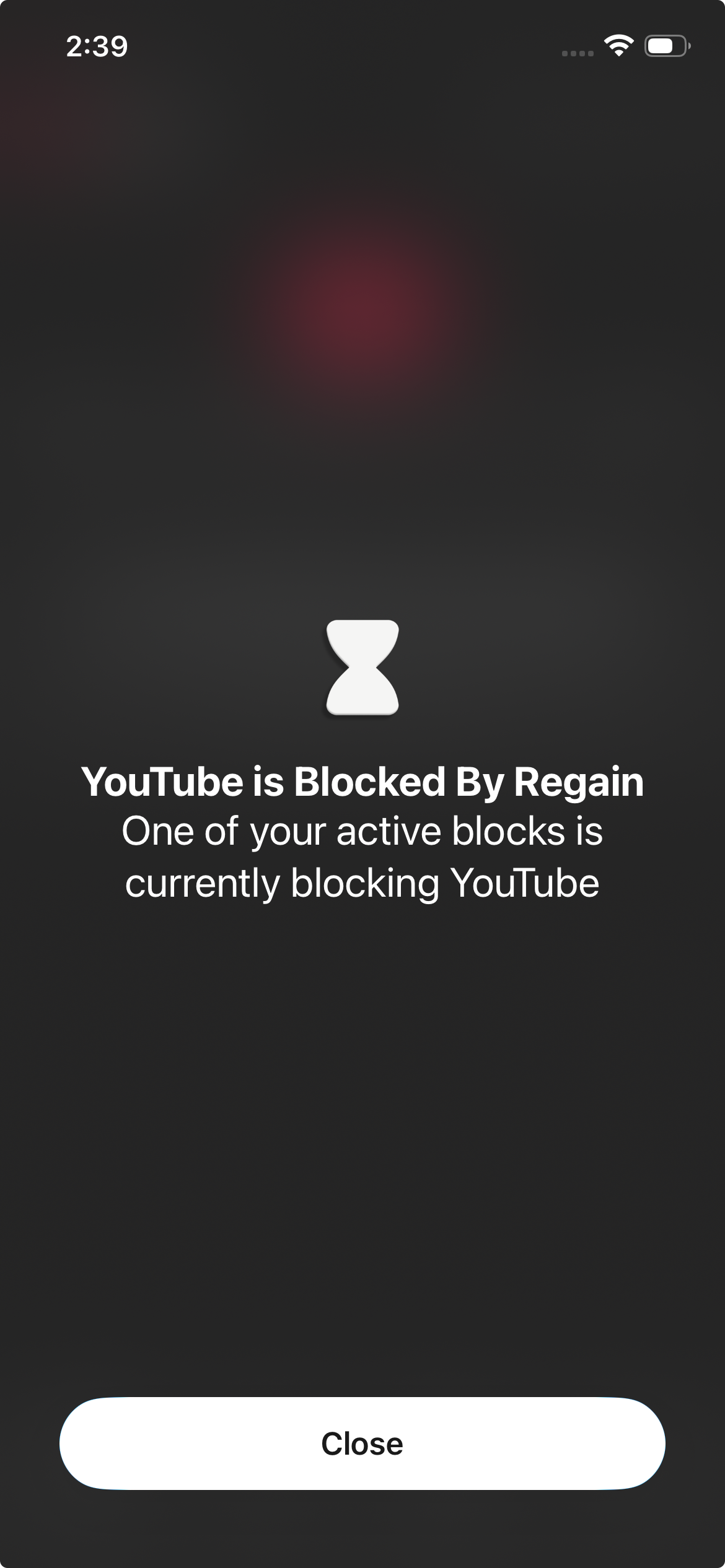
View The Blocked App
How To Block Websites
With Regain, there are two main ways to block websites:
1. Using the App & Website Picker(recommended)
2. Using the Additional Websitesfeature
Block Websites Using the App & Website Picker (Recommended)
Note: If you just started using Regain, websites might not show up in the picker immediately. Open the site in Safari and wait about 5 minutes for it to appear.
Important: If you use a third-party browser like Chrome, make sure Safari Only Mode is disabled.
Steps:
1. Tap Select Apps & Websites To Block
2. Tap Search
3. Type in the website URL
4. Close & save your session.
👉 For best results:
Block Websites Using Additional Websites
Note: If you use Safari, the Additional Websites option may disable features like Private Browsing and clearing history. It’s less reliable than the App & Website Picker.
Steps:
1. Tap Select Apps & Websites To Block
2. SelectAdditional Websites
3. TapAdd New Website or pick from the list.
4. Close & save your session.
⚠️Note:“Additional Websites” are not supported for App Limit sessions (this is due to Apple’s Screen Time limitations).
If You Use Safari (Recommended)
Safari works best with Regain since it blocks sites instantly without needing to reload pages.
If You Use a Third-Party Browser (Like Chrome)
Don’t See Websites in the App & Website Picker?
If websites aren’t showing up:
1. Open the site in Safari, then wait 5 minutes.
2. If the site still doesn’t appear, you may have too many saved. Clear websites (see below) and try step 1 again.
How to Clear Websites
Step 1: Clear Safari data
1. Open thepple Settings app.
2. Go to Safari
3. Tap Clear History and Website Data.
4. Confirm.
Step 2: Reset permissions
1. OpenApple Settings Screen Time.
2. InApps With Screen Time Access, turn off access for all third-party apps (including Regain).
3. OpenRegainagain — it will ask for permissions. Grant them.
Strict Modes
Regain’s Strict Modes make it harder to stop blocking - helping you stay in control of your focus when it matters most.
The selected mode takes effect whenever your blocking session is active.
Each mode increases the level of difficultyfor stopping a block - from gentle reminders to complete lockdown.
Why Strict Modes Matter
It’s easy to fall into the habit of tapping “Stop Blocking” whenever you feel the urge to open an app. Strict Modes help break that pattern by adding just enough friction to make you pause and rethink.
While most apps remove friction to keep you hooked - like infinite scroll or autoplay - Regain does the opposite:
it adds friction so you can regain control of your time, attention, and energy.
Strict Mode Levels
🟢 Normal (Easy)
This is the default mode. You can stop blocking at any time - no interruptions or restrictions.
🟡 Interruptions (Medium)
Adds small interruptions each time you try to stop blocking, giving you time to reconsider.
You can choose between two interruption types:
⏳ Duration Challenge
- Pauses your unblock attempt for a set time (3–300 seconds).
- You can customize the wait time and even display a motivational message to yourself.
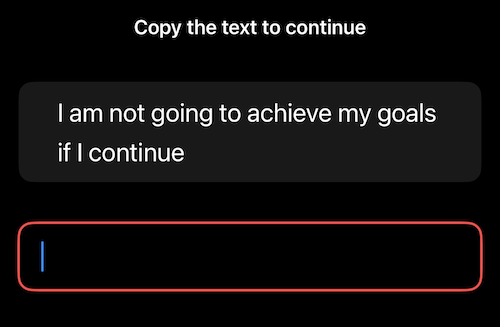
✍️ Copy Text Challenge
- Before stopping a block, you’ll need to correctly type a short random phrase (e.g., “who let the dogs out”).
- This requires active effort, unlike the Duration option where you can simply wait.
🔵 Unblock Limit (Hard)
Restricts how often and how long you can unblock apps per day.
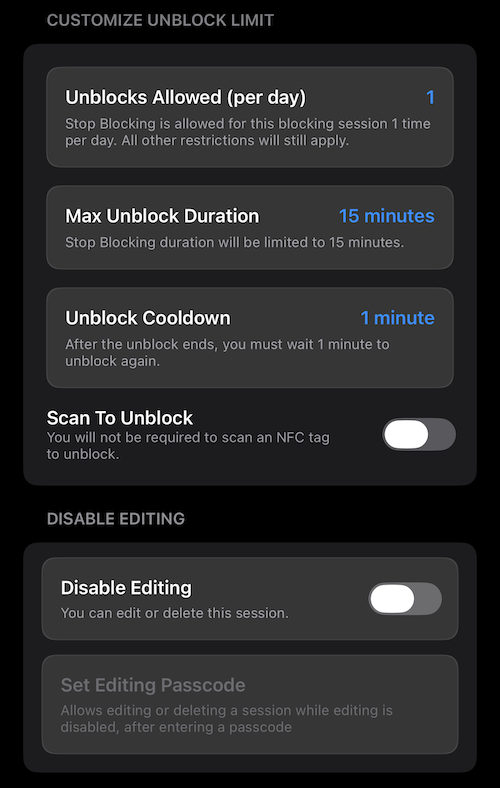
You can customize:
- Number of unblocks per day (e.g., 5 times)
- Maximum unblock duration (e.g., 30 minutes)
- Cooldown time after unblocking (e.g., wait 5 minutes before the next unblock — similar to Pomodoro)
- NFC tag requirement to unblock - turn any physical tag into your “focus key”
You can also enable Disable Editing or Lockdown Mode for even more strictness.
🔴 Always Block (Extreme)
Completely prevents unblocking specific apps or websites.
For example, if you block Facebook under “Always Block,” it will stay blocked, even if you choose “Unblock All Apps.”
You can also enable Disable Editing or Lockdown Mode for maximum control.
🔒 Disable Editing & Lockdown Mode
Both the Unblock Limit and Always Block modes allow two extra layers of restriction:
Disable Editing
Prevents changes to your blocking sessions or settings while the session is active.
Lockdown Mode
Completely locks your ability to delete or edit Regain during strict blocking.
This is only available for Regain Pro users.
🌱 Productivity Tip: Ease Into Strict Modes
To build sustainable focus habits:
- Start by blocking your most distracting apps.
- When you need a short break, stop blocking for a few minutes.
- Let the block automatically resume once your break ends.
- Repeat - small steps add up.
It’s normal to keep unblocking at first - that’s part of the process. The friction itself retrains your attention.
Start with lighter restrictions, then gradually move to stricter modes as your self-control strengthens.
🪄 How to Enable a Strict Mode
Step 1
Tap “Start” from the bottom tab bar.
Step 2
Select a blocking session (e.g., “Block Social Apps”).
Step 3
Scroll to the “Strict Mode” section and tap “Normal.”
Step 4
Choose your preferred Strict Mode level.
Step 5
Tap Start Blocking — and regain your focus.
Learn About Regain App Features
Explore Our Powerful Features
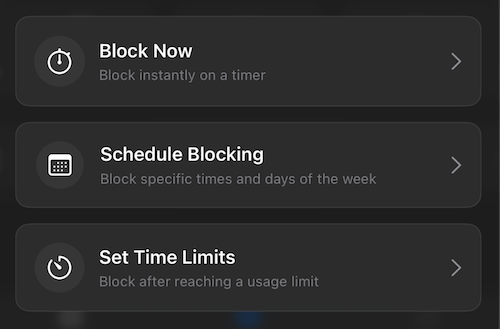
Run Multiple Blocking Sessions
Easily manage over 15 simultaneous blocking sessions — all designed to suit your needs:
- Quick Block – Instantly block apps or sites for a set time (e.g., 30 minutes of distraction-free work).
- Scheduled Blocking – Automatically block during specific days/times (e.g., 9 AM–5 PM weekdays for work, early mornings to avoid oversleeping, or late nights to encourage better sleep).
- Time Limits – Block apps once you’ve spent too long on them (e.g., restrict social media after 15 minutes).
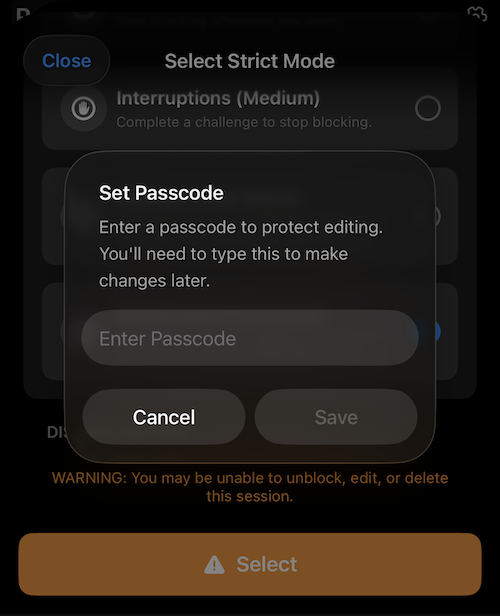
Add Extra Protection With Passcodes
Want stricter rules? Lock your blocking sessions with a custom passcode. You can:
- Use a code you don’t memorize and store it somewhere safe.
- Share the code with a trusted friend to keep yourself accountable.
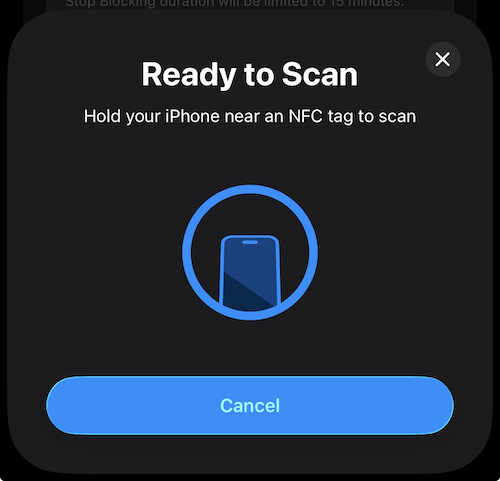
Unlock With NFC Scan
Turn your phone into a productivity lockbox. Set up NFC tags so that unblocking requires scanning a physical “key.” Perfect for building mindful habits.
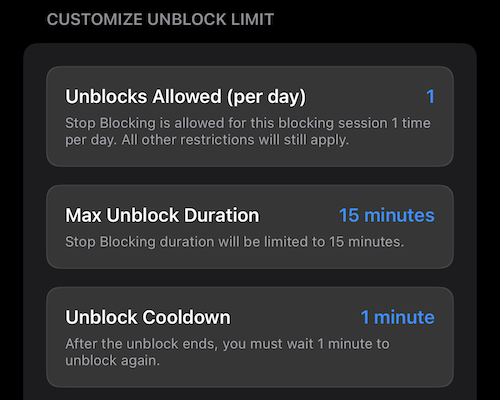
Limit Unblocks Per Day
With Deep Focus Mode, you decide how many times per day you’re allowed to unblock apps. Customize rules to be flexible or highly restrictive depending on your goals.
Focus With Pomodoro Sessions
Turn our blocking system into aPomodoro timer:
- 25 minutes of work, followed by a 5-minute break.
- Control cooldowns, maximum break times, and total number of unblocks allowed.
This way, your focus time and break time stay in balance.
Break Challenges Before Unblocking
Keep distractions at bay by adding friction to unblocking:
- Countdown Breaks – You must wait a short timer before apps unlock.
- Copy-Text Challenge – Copy a phrase correctly to proceed.
These interruptions give your brain a chance to reconsider breaking focus.
Personalize Your Experience
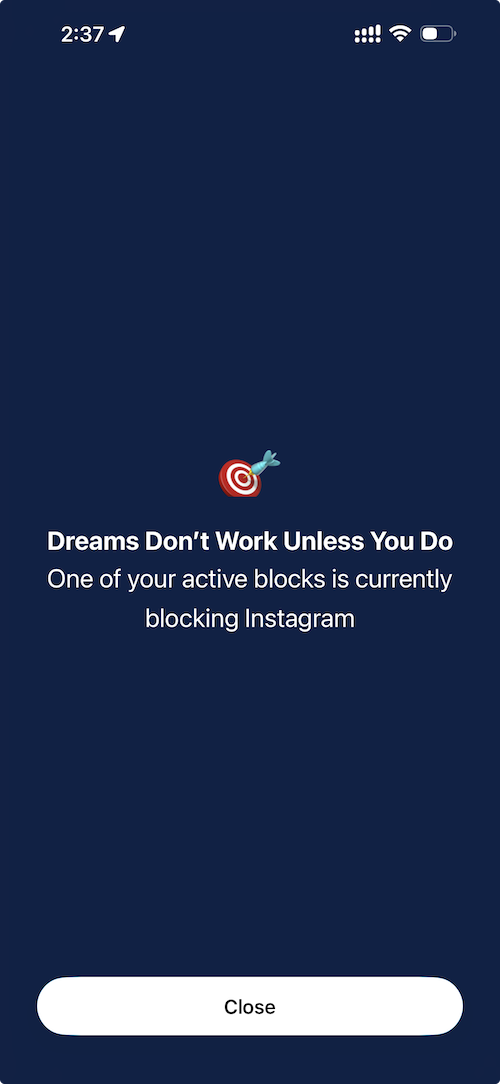
- Custom Block Screens – Add your own visuals or motivational messages.
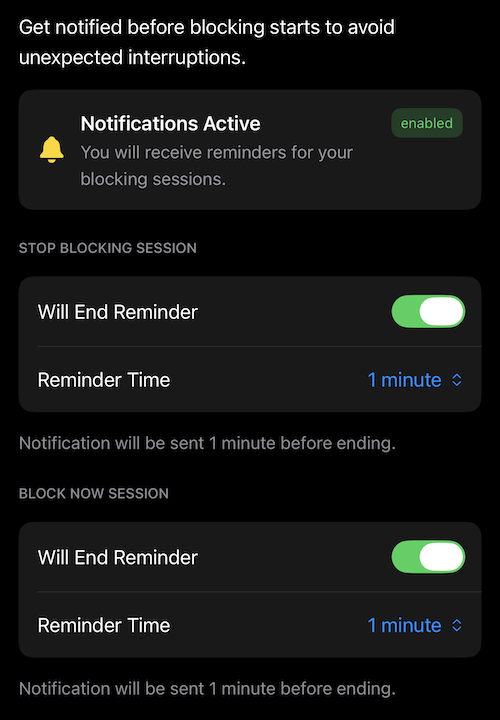
- Notifications – Get alerts when a block session begins.
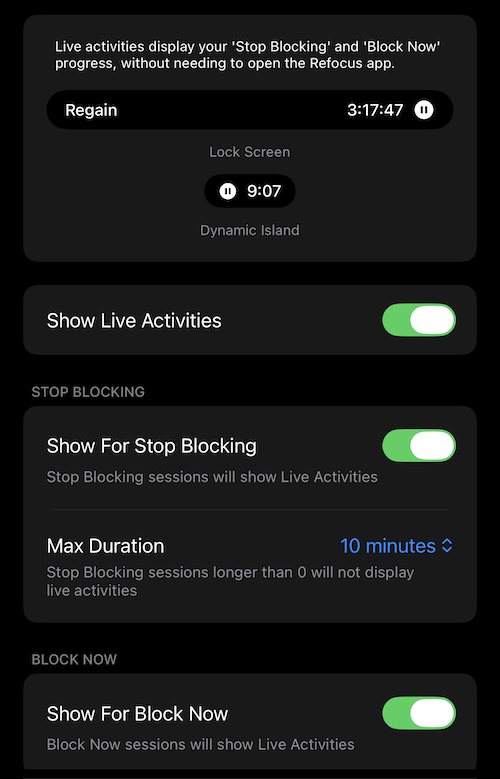
- Live Activities – Track active sessions in real time.
Smarter Time Tracking
Exclude productive apps (like Books or Notes) from screen time reports, so your usage stats stay accurate and motivating.
Save Session Templates
Re-use your favorite setups. For example:
- “30-min reading session”
- “1-hour deep work session”
Just save once and restart anytime with a single tap.
Disabled Safari Features
Because of Apple’s system limitations, certain Safari features (such as Private Browsing) will be disabled whenever a blocking session is active and one of the following applies:
- You’re using the Additional Websites filter (including the “Adult” filter).
- OR “Safari Only Mode” is OFF and a website is blocked through the Application Picker.
When these conditions are true, Safari restrictions apply:
- Private Browsing is disabled.
- Clearing browsing history is disabled.
- Google SafeSearch is automatically enabled.
- Password managers (like 1Password) may not autofill in Safari or in-app browsers.
How to Avoid This Issue
- Use Safari as your browser.
- Don’t use “Additional Websites” or “Adult” filters — instead, block sites through the Application Picker.
- Turn Safari Only Mode ON.
Safari Only Mode
Safari Only Mode helps avoid the issues above when blocking websites through the SApplication Picker.
However, note that this also means website blocks will not apply in third-party browsers (like Chrome).
To enable Safari Only Mode:
- Open the SRegain Settings screen (gear icon in the top-right corner).
- Tap SAdvanced Settings.
- Toggle SSafari Only Mode ON.
Chrome Always Works
If you prefer third-party browsers like Chrome, private browsing will always remain available.
Keep in mind: Chrome cannot be used for individual website App Limit tracking.
Google SafeSearch in Safari
Google SafeSearch is also affected by the settings above. To prevent SafeSearch from automatically turning on in Safari:
- Avoid using the Additional Websites filter.
- Keep Safari Only Mode ON.
- Go to Apple Settings > Screen Time > Content & Privacy Restrictions and turn them OFF.
What Is the Application Picker?
The Application Picker is where you select websites and apps to block.
How to Safely Delete Regain
Before deleting Regain, make sure all apps and websites are unblocked to avoid a rare iOS issue where blocked apps stay restricted even after uninstalling.
(This is a known Apple bug that may occur occasionally.)
If you never blocked anything with Regain, you can safely delete it as you would any other app.
⚠️ Regain never prevents you from deleting apps unless you’re a Regain Pro user who has turned on Lockdown Mode.
If you can’t delete the app, see “How to Delete an App” below.
🛑 How to Stop Blocking
You can stop blocking in two ways:
Option 1: From the Home Screen
- Open Regain.
- Tap “Stop Blocking” on the home screen.
- Tap “Stop Blocking” again at the bottom of the popup screen.
- Confirm that your apps are unblocked.
Option 2: Delete a Blocking Session
- Swipe left on a blocking session (for example, “Block Distracting Apps”).
- Tap Delete to remove it.
- Double-check that your apps are now unblocked.
⚠️ If Blocking Still Doesn’t Stop
Try the following steps:
- Check Apple Screen Time
Go to Settings → Screen Time, and make sure everything is turned off (no app limits or content restrictions).
- Use Regain’s Built-In Fix
Open Regain → tap the gear icon (⚙️) → Advanced Settings → Fix App Blocking.
- Restart Your Device Restart instructions here.
- If Regain is Already Deleted
Go to Settings → Screen Time, and turn everything off again.
(In iOS 17, tap the red “Turn Off App & Website Activity” button at the bottom.)
Restart your device afterward.
- Still Stuck?
🗑️ How to Delete an App
Make sure Regain is on your Home Screen, as some iOS screens don’t allow app deletion.
- Tap and hold the Regain app icon.
- Tap “Remove App.”
- List
- Tap “Delete App” to confirm.
- List
🚫 If You Don’t See a Delete Option
⚠️ Regain never prevents app deletion unless you’re a Regain Pro user with Lockdown Mode turned on.
Try these steps:
- Move Regain to the Home Screen — some screens don’t show the delete option.
- Check for Other Screen Time Apps
Go to Settings → Screen Time → Apps With Screen Time Access, and toggle everything off.
- Check Apple Restrictions
Go to Settings → Screen Time → Content & Privacy Restrictions → iTunes & App Store Purchases → Deleting Apps, and make sure it’s set to Allow.
- If You’re a Regain Pro User
Ensure Lockdown Mode is not active. Regain only restricts deletion when Lockdown is manually turned on.
How Do I Block Websites in Regain?
You can block websites in two ways:
1. Using the App & Website Picker (Recommended)
- Go to Select Apps & Websites To Block
- Tap Search and enter the website URL
- Save your session
👉 Works best in Safari. Turn Safari Only Mode ON for instant blocking.
2. Using Additional Websites
- Go to Select Apps & Websites To Block
- Choose Additional Websites
- Add the site manually and save
⚠️ Note: In Safari, this method disables Private Browsing and clearing history.
Take Control Of Your Phone